Wi-Fi® screen

Network status
This screen displays the current network status, including the currently connected Wi-Fi® network name, IP addresses, connection quality, signal strength and other information.
Wi-Fi® connect
This screen lets you scan and list available Wi-Fi® networks and connect to them.
Wi-Fi® reconnect
Starts connecting to a previously saved Wi-Fi® network.
Wi-Fi® disconnect
Disconnects from the currently connected Wi-Fi® network.
AP mode
Enables/disables Access Point mode. The device advertises its own Wi-Fi® network (called M1KE AP by factory default settings) which you can connect to using a phone, tablet or computer to access the device’s web interface even when it’s not connected to a Wi-Fi® network.
See this page for more information on how to use the AP mode.
Wi-Fi® networks

This screen lets you edit the list of saved Wi-Fi® networks. Each slot stores the network name (SSID), and password. The device will try to connect to the network configured in the first slot, then to the second, and so on. After trying all of the configured networks, it restarts the sequence with the first network.
Presing the OK/Menu Button on a slot will open the Keyboard screen to enter the SSID and password for that slot.
Note
You can clear an entry if you set an empty SSID.
The Save Wi-Fi® networks to all config profiles checkbox at the bottom of this screen allows you to have a common list of saved Wi-Fi® networks across all Configuration profiles. This is enabled by factory default settings. If you turn this off then you can have up to 5 different Wi-Fi® network to connect to in each configuration profile.
Note
Refer to the Configuration profiles page for more information about configuration profiles.
Network settings
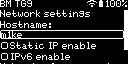
This screen lets you configure the device’s network settings. You can change the device hostname, enable or disable static IP address and IPv6 usage. You can also set a web interface password.
Note
The device has no web interface password set by factory default settings. Clear it if you’ve set a password and you want to disable the login screen.