Select Wi-Fi® network screen
Note
You can skip connecting to a Wi-Fi® network if you want to use the M1KE to talk directly to other M1KE devices on the same channel. See this page for more information about connecting to a Wi-Fi® network later.
Note
You can also use the M1KE’s AP mode with a phone/tablet/computer to set up a Wi-Fi connection, see this page for more information.

Press the OK/Menu Button to bring up the list of detected Wi-Fi® networks:
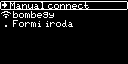
Use the Up Button and the Down Button to move the cursor and navigate the list. Select your Wi-Fi® network by moving the cursor to it and pressing the OK/Menu Button. This will bring up the keyboard for the Wi-Fi® password entry:
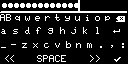
Keyboard screen
Use the Up Button and the
Down Button to move the cursor and navigate
the keyboard. Press the OK/Menu Button to select a character. Finish
entering the text by pressing the OK/Menu Button on the  key.
key.
Special keys:
1# or AB or ab switches to alternate keyboards which lets you input more characters
 is the backspace key
 is the enter key which lets you input multi-line text where
applicable
is the enter key which lets you input multi-line text where
applicable<< and >> moves the cursor to the left and right
- finishes the entry and closes the keyboard
Note
You can go back to the previous screen without entering text by pressing the Back Button.
Important
After connecting to a Wi-Fi® network the M1KE will only be able to send and receive Broadcast calls on the connected Wi-Fi® network’s channel.
Note
See this page for more information about connecting to a Wi-Fi® network later.