Main Menu screen
Pressing the OK/Menu Button on the Main screen or on the Ongoing call screen shows the Main Menu:

Keypad Lock
This option locks the keypad to prevent accidental key presses. To unlock the keypad, press and hold the OK/Menu Button for a few seconds.
Keypad lock is also indicated by the  icon on the screen at
the Status icons section.
icon on the screen at
the Status icons section.
You can change which buttons the keypad lock affects at the Display / keypad settings on the Settings page of the web interface, or on the Display settings screen.
Quick Setup
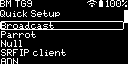
This screen lets you quickly set up the device to connect to a network. Refer to the description of connectors on the web interface for more information on the available settings for each network type.
Messages
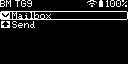
This screen lets you Send messages and view the message Mailbox.
Note
Templates for sending messages can be set up at the Message send templates on the Settings page of the web interface.
Settings
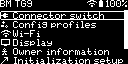
This screen lets you change the most important set of the device’s settings. Refer to the Settings screen page for more information.
Note
Not all device settings are available on the Settings screen. Use the web interface for more settings.
About
The About screen displays information (device UID, firmware version, etc.) about the device.