Advanced settings
Note
These sections are only shown if Advanced mode is enabled.
Mode settings

The Audio gain from network (dB) settings can be used to adjust the audio gain of received streams from each mode. These modes all use different audio gain levels.
The Preferred talkgroup list decides which talkgroup list to use for resolving talkgroup IDs to their names.
If the Send no in-band data to network setting is enabled, then in-band data (call message as talker alias) won’t be sent to the network.
If the Generate talker alias setting is enabled then the device will send your call message at the beginning of the NXDN® call to the network.
Message send templates
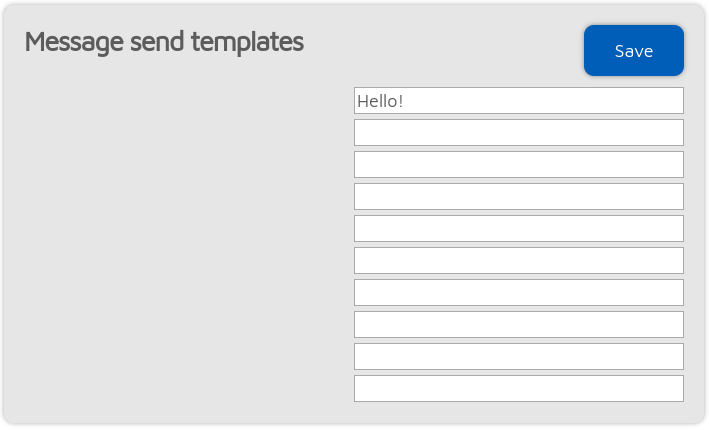
You can set up to 10 message send templates here. These templates can be used to send predefined messages to the network.
Call mute settings
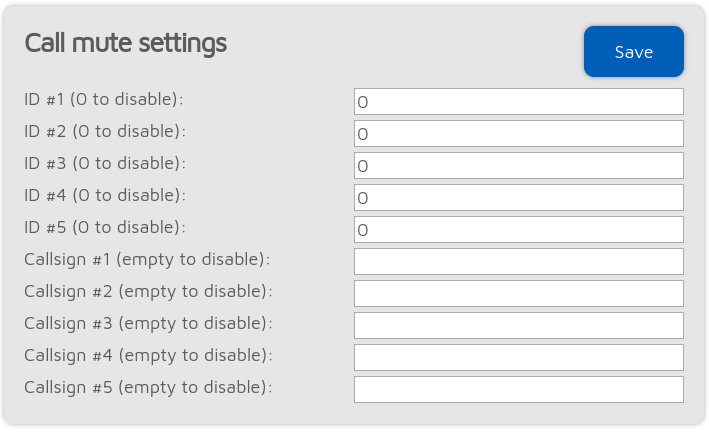
These settings allows you to mute calls coming from the given IDs and/or callsigns. Calls from muted IDs/callsigns will still be received, but with silent audio.
Note
Call mute settings will be applied when the next call is received.
Beeper settings

If a Morse code sequence is beeped then the Morse code tone freq. (Hz) and Morse code WPM can be adjusted.
If the Beep profile number on startup setting is enabled, then the device will play the letter P followed by the currently active profile number on startup in Morse code. If the Beep profile number on startup setting is enabled, then the profile’s name will also be played in Morse code.
Beeper sequences
Each tone in the sequence is represented by a frequency (in Hz) and duration (in ms) pair of numbers, separated by a comma. Tones are separated by semicolons.
Example sequence: 500,80;0,50;600,50
This example sequence has 2 tones, and a pause between them. The first one is 500Hz, 80ms long, the second one is 600Hz, 50ms long, and the pause between them is 50ms long.
The  button resets the sequence to the factory default value.
Note
Clear the PTT on beep sequence to speed up the PTT response time.
RTC settings
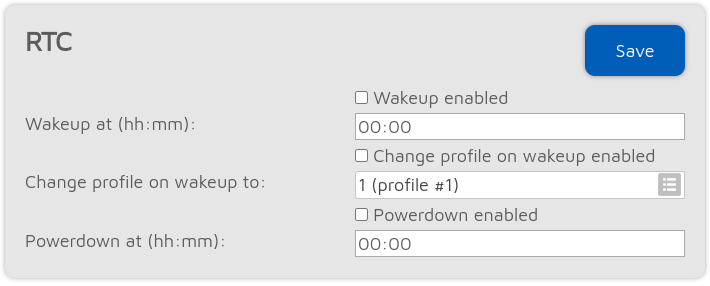
You can set a daily wakeup and a powerdown time here. You can also set the profile to boot when waking up, so it’s possible to jump between configuration profiles.
Speaker FX settings

The Speaker FX settings can be used to adjust the audio output of the device.
The EQ setting changes the audio equalizer settings. Check the checkbox below Low, Mid, and High to enable modifying the corresponding audio range.
The Loudness setting controls the audio compression level. The default enabled 1% state gives a good audio quality. If the speaker’s audio level is not adequate, then you can increase the loudness level to make everything louder.
Logo settings

You can set custom startup and main logos. The startup logo is displayed when the device is turned on, and the main logo is displayed on the Main screen.
You can import image files in PNG, JPG or BMP format, and export in PNG format. You can reset the logos back to the default ones by clicking the Reset button.
Imported logos are automatically converted to 1-bit images (with black and white pixels). You can adjust the conversion threshold, invert the image pixels and zoom the image to fit the screen.