Ongoing call screen
When there is an ongoing call, the screen displays the following:
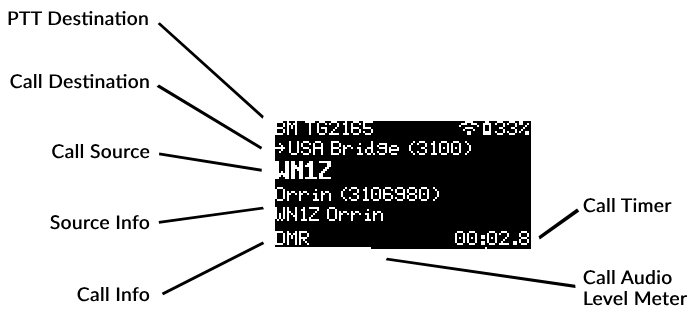
PTT destination section
This section displays the currently active connector’s name and the destination of the outgoing call when the PTT (Push-To-Talk) Button is pressed. If the currently active server is a saved one, then the server’s name is displayed in this section.
Refer to the connectors page on how to change the active connector.
You can change the PTT Destination by long pressing the Down button while the Main screen or the Ongoing call screen is active, or on the Mic settings page of the web interface.
Call hold reply
The PTT destination section blinks if:
The server is not reachable
Finished receiving a DMR or NXDN® call from the network (and the Call hold setting is not zero)
In the latter case, the PTT destination section will display the received call’s destination while blinking. Pressing PTT during this time changes the M1KE’s PTT Destination to this destination.
This is useful if you have multiple talkgroups linked on a DMR or NXDN® network, and you want to reply to a call received on a different talkgroup than your current PTT Destination setting.
Call destination section
This section displays the destination of the call. The destination can be a callsign or an ID.
Call source section
This section displays the source of the call. The source can be a callsign or an ID.
Source info section
This section displays additional info about the source of the call. The first line displays the source’s name and ID (if available and applicable). The second line displays the source station’s broadcasted message (for example the Talker Alias if a DMR network is used).
Call info section
This section displays information about the call’s protocol (example: DMR, C4FM etc.), voice codec (PCM, A3K etc.) or call type (prv for private calls, data for data calls).
If bit errors or packet loss is detected then this section displays the BER and Loss values for a few seconds.
Call timer section
This section displays the call’s duration. If the call has been muted (for example by the Call mute settings on the Settings page of the web interface), then MUTED is blinking here.
The call duration starts blinking if the call has ended. The duration of the blinking can be set at the Call hold setting.
Call audio level meter section
The call audio level meter is displayed at the bottom of the screen.