Wireless settings
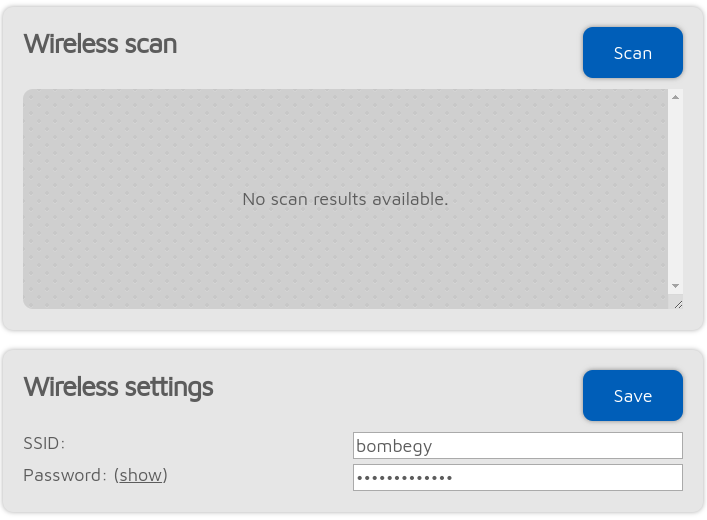
If Advanced mode is enabled, you can define up to 5 Wi-Fi® networks (per Configuration profile) to connect. If the first configured Wi-Fi® network is not available, then the device will try connecting to the second one. If it’s not available either, then it’ll try the third one and so on. After trying all of the configured networks, it restarts the sequence with the first network.
If Advanced mode is enabled, the Wireless scan list will have a Save button for all previously unsaved networks instead of the Connect button. Clicking on the Save button lets you easily save the network to one of the 5 available Wi-Fi® network slots.
If you are manually adding a connection to an iPhone®’s shared internet connection then make sure you copy and paste the phone’s Wi-Fi® SSID as the iPhone® uses a special apostrophe character which looks nearly the same as the one you can enter with your keyboard, but it’s different, and all characters need to match.
If the Disable reconnect when no internet access detected setting is active then the device won’t try connecting to other Wi-Fi® networks when there is no internet connection detected on the currently connected Wi-Fi® network.
Configuration profiles also contain Wi-Fi® networks and passwords. If the Save to all configuration profiles is on, then like it says it will store the Wi-Fi® network names and passwords into all profiles when you click on the Save button. This makes it act like there’s only one list of Wi-Fi® networks, but if you turn this setting off you can have different Wi-Fi® networks stored in each configuration profile. This can be useful if you want to use different profiles based on your location - maybe one at home, one when you’re tethered to your phone, one when you’re visiting family, and so forth.
Note
If a BSSID is configured for a network then it’ll be used instead of the SSID.
Roaming settings
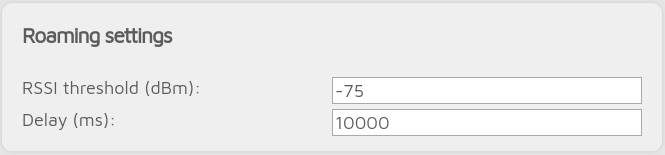
The device supports automatic Wi-Fi® network roaming. The Roaming threshold (dBm) setting defines the signal strength level at which the device will start waiting for the Delay (ms) time before switching to another Wi-Fi® access point on the same network.
Access point mode settings

The AP mode SSID can be set in the AP SSID input field. By default there’s no Wi-Fi® password set for the M1KE’s AP mode, but you can set one at the AP key input field.
The AP mode Wi-Fi® channel can be set in the Channel number input field.
Note
A connected Wi-Fi® network’s channel number will be used instead of the configured one while the M1KE is connected to a Wi-Fi® network.
See this page for more information on how to use the AP mode.