MAC settings
Note
This section is only shown if Advanced mode is enabled.
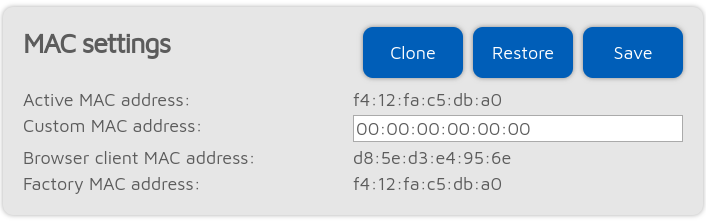
You can change/clone the Wi-Fi® MAC address of the M1KE here. This is useful if you try to use a Wi-Fi® network which uses a captive portal for authentication (example: hotel or airport networks). In this case, do the following:
Connect to the Wi-Fi® network with your phone/tablet/computer, log in on the captive portal to enable the internet access for your phone/tablet/computer’s MAC address
Enable the M1KE’s access point (AP) mode
Connect your phone/tablet/computer to the M1KE AP, but exit the Initialization setup and open the Network page
Set the captive portal Wi-Fi® network’s SSID and key at the Wireless settings section
Click on the Clone button at the MAC settings section (make sure Advanced mode is enabled so the MAC settings section is visible).
Disable the M1KE’s AP mode
The device will connect to the captive portal Wi-Fi® network with your phone/tablet/computer’s already logged in MAC address.
Important
MAC cloning may cause packet loss and the network connection of both devices may get periodically interrupted.